PRO on Apple Silicon
Use INCY from the App Store, subject to the store’s system requirements, or the Apple Silicon build on the official download page.
PRO · INCY · HAPP
We recommend INCY for Project V PRO. Happ is also supported and opens the same subscription from Telegram. Below are the INCY installation steps and the bot button to import your subscription into Happ.
These instructions are for PRO (₽180 per 30 days). The 3-day test is available in the same bot; see the pricing page.
Project V PRO uses VLESS + Reality and AmneziaWG; it costs ₽180 per 30 days. The subscription comes from Telegram; INCY is the free app that runs the connection on your device.
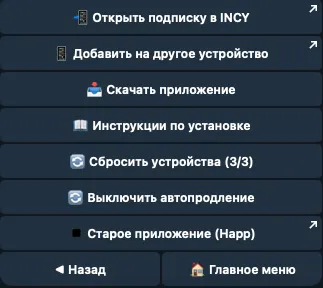
Project V subscriptions, payments and renewals are managed in @projectv2newbot. The bot provides a subscription link that loads the server list into INCY. The bot’s “Open subscription in INCY” button («Открыть подписку в INCY») passes that link to the installed app. “Add to another device” («Добавить на другое устройство») shows the link for manual import.
INCY is a third-party app. Your Project V payment covers the VPN subscription; the app itself is free. We recommend INCY. Happ is also supported and opens the same PRO subscription.
To connect with Happ, open your PRO subscription in @projectv2newbot with Happ installed and press “Old app (Happ)” («Старое приложение (Happ)»). This imports the same subscription into Happ. You can keep using Happ; switching to INCY is optional. If the import does not open, contact @pvsupp.
See the subscription terms for the allowance, devices and the test.
Get the PRO subscription in Telegram, install INCY, add the subscription and connect to a route. Install the app before using the bot’s import button.
Open @projectv2newbot and press Start. New users automatically get ₽25 from the bot when they sign up — enough for the 3-day test. Take the test or subscribe to PRO, and the bot shows your subscription card.
Use the bot’s “Download the app” button or the official download links in the device sections below. Install INCY on the device where you will use Project V and open the app.
In the bot's subscription card, press “Open subscription in INCY” («Открыть подписку в INCY») and confirm opening the app if prompted. If the button does not open INCY, use “Add to another device” («Добавить на другое устройство»), copy the subscription link and paste it into INCY's subscription import. This also lets you add the subscription on a computer when Telegram is on your phone.
Choose a server from the imported list and enable the connection in INCY. Allow the system VPN configuration or connection request when prompted, then open a website to check the connection. Poland ∞ does not consume the PRO allowance; traffic through the whitelist-bypass route counts ×10.
Happ is also supported for PRO. The bot's “Old app (Happ)” button («Старое приложение (Happ)») opens the same PRO subscription in Happ.
Install INCY from the App Store, then follow the PRO steps above. Use the bot’s subscription button after installing the app.
When iOS or iPadOS asks to add a VPN configuration, allow it and confirm with the device’s authentication method. Return to INCY to enable the connection. Check the App Store compatibility section if installation is unavailable on your device.
Install INCY from Google Play. If Google Play is unavailable, the developer’s download page links to the Android APK. Then follow the PRO subscription steps above.
For an APK installation, Android may ask you to allow installation from the browser or file manager you used. On the first VPN connection, confirm the system’s connection request. If the connection stops when the screen turns off, check whether the system is restricting INCY’s background activity; the setting’s name depends on the device.
Use the official INCY downloads for the Windows installer or portable build. Run the installer, or extract the portable archive and open the app. Follow the PRO steps to add the subscription from Telegram or paste its link into INCY.
If installation is blocked or the app will not start, send the app name and exact message to @pvsupp so support can identify the cause.
Use INCY from the App Store, subject to the store’s system requirements, or the Apple Silicon build on the official download page.
Use the macOS Intel build on the official INCY download page. The App Store listing requires a Mac with an Apple M1 chip or later.
Apple menu → About This Mac identifies your chip. For an INCY .dmg download, open the disk image and copy the app to Applications. Then follow the PRO steps above to add the subscription. Allow the system VPN request when prompted.
If the server list is missing, use “Add to another device” in the bot and import the subscription link into INCY. If the list is outdated, refresh the subscription in the app.
Confirm the VPN permission request. Check whether another VPN app or a local-VPN ad blocker is active and temporarily disconnect it to test for a conflict.
Try another route in the subscription, and compare Wi-Fi with mobile data. Different results help support investigate; they do not by themselves establish the cause. The whitelist-bypass guide explains the dedicated route.
INCY is the recommended app for Project V PRO. Happ is also supported and opens the same subscription.
Open @projectv2newbot and use “Open subscription in INCY”, or copy the link from “Add to another device”. Install INCY before using the import button.
INCY is free. The Project V PRO subscription costs ₽180 per 30 days, and the test costs ₽25 for 3 days. See the subscription terms.
No. Get the subscription in Telegram and install INCY on the phone itself.
Yes. The subscription includes a shared 500 GB allowance per 30 days for up to 3 simultaneous devices. Whitelist-bypass traffic counts ×10: 1 GB through that route uses 10 GB of the allowance. Servers marked ∞ do not consume the allowance, and Poland continues working after the 500 GB has been used.
Yes. Happ is supported and opens the same PRO subscription via the “Old app (Happ)” button in the bot. We recommend INCY, but switching is optional.
Use the app link provided in the bot or contact @pvsupp. Store availability and system requirements can vary.
Project V offers the PRO subscription at ₽180 per 30 days, using VLESS + Reality and AmneziaWG, with whitelist bypass. The test costs ₽25 for 3 days; new users automatically get ₽25 from the bot when they sign up. Subscription management is in Telegram at @projectv2newbot, and payments are processed through Tribute.
Install INCY, get the PRO subscription in @projectv2newbot and press “Open subscription in INCY”. If the button does not open the app, “Add to another device” shows the link for manual import. Choose a route and enable the connection. Happ is also supported and opens the same subscription through the bot’s “Old app (Happ)” button.
Project V PRO setup instructions cover iPhone and iPad, Android, Windows and macOS. INCY is the recommended client for PRO and Happ is also supported. Support is available in Telegram at @pvsupp.
The subscription includes a shared 500 GB allowance per 30 days for up to 3 simultaneous devices. Whitelist-bypass traffic counts ×10: 1 GB through that route uses 10 GB of the allowance. Servers marked ∞ do not consume the allowance, and Poland continues working after the 500 GB has been used.
Use “Open subscription in INCY” for our recommended app, or “Old app (Happ)” if you use Happ. Install your chosen app before importing the subscription from @projectv2newbot.
Payment and support live in Telegram · @pvsupp